
Is Your Laptop Battery Not Charging? 7 Possible Causes and Solutions

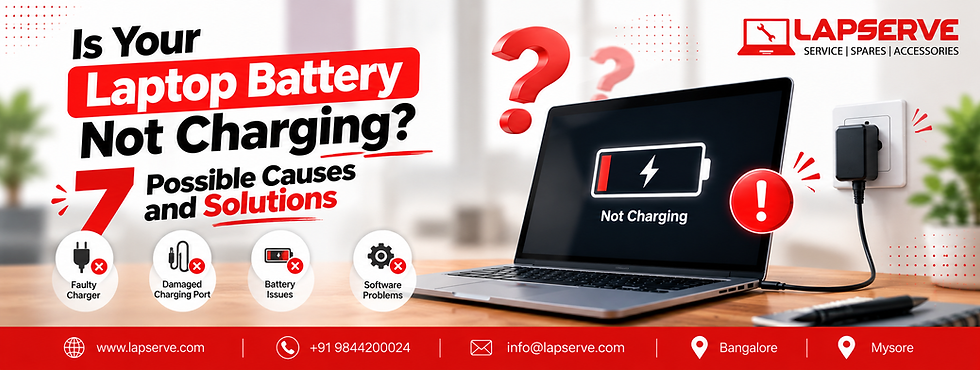
Your laptop is plugged in, but the battery percentage refuses to move. Maybe it is stuck at 80%, perhaps Windows says “plugged in, not charging,” or the battery drops rapidly even while connected to power. In some cases, the laptop works perfectly with the charger but shuts down the moment you unplug it.
The good news? A laptop battery not charging does not automatically mean the battery needs replacement.
The cause could be as simple as an incompatible charger, a loose charging port, outdated drivers, excessive heat, or a battery-protection setting. At the other end of the spectrum, the problem could involve the motherboard or charging circuit.
The issue matters because laptops remain a major part of India's computing ecosystem. IDC reported that India's traditional PC market shipped a record 15.9 million units in 2025, up 10.2% year over year. In Q1 2026 alone, India shipped 4.4 million traditional PCs, including 3.3 million notebooks.
So, before you replace your battery—or your laptop—let's find the real cause.
Laptop Battery Not Charging? Start with These Quick Checks
Before opening the laptop or visiting a technician, try these basic checks:
Test a different wall socket.
Inspect the charger and cable for cuts, bends or exposed wiring.
Disconnect and reconnect the charger firmly.
Restart the laptop.
Check whether the charging LED or battery icon responds.
If possible, test with the manufacturer's recommended charger.
For USB-C laptops, make sure the charger provides sufficient power for the laptop.
Microsoft notes that a PC may charge slowly or even discharge while plugged in when the charger or cable cannot provide the power the computer requires.
If these checks don't solve the issue, move to the seven likely causes below.
1. Faulty Laptop Charger or Power Adapter
A weak charger can leave your battery stuck
One of the first things to investigate is the power adapter.
A damaged cable, failing adapter, incorrect wattage or incompatible USB-C charger can prevent normal charging. You may notice that the laptop runs when connected to power but the battery percentage does not increase.
What to do:
Check the adapter for physical damage.
Confirm that its voltage and wattage match your laptop's requirements.
Try a known-compatible charger.
Avoid unreliable third-party adapters.
If another compatible charger works normally, the original adapter is a strong suspect.
2. Damaged or Loose Charging Port
Wobbly connection, interrupted protection
Does charging stop when you move the connector? Does the laptop charge only when the cable is positioned at a particular angle?
A worn, cracked or loose charging port can interrupt the power connection. USB-C ports can also develop problems from physical stress, dust or connector damage.
This is where laptop charging port repair may be necessary. Avoid repeatedly forcing or twisting the connector, because doing so can turn a port problem into a motherboard-level fault.
3. Worn-Out or Degraded Laptop Battery
Less backup today, more shutdowns tomorrow
Lithium-ion batteries naturally lose capacity with age and usage. Microsoft states that lithium-ion cells deteriorate over time and recommends avoiding high temperatures because excessive heat can accelerate battery deterioration and permanently reduce capacity.
Typical signs of a degraded battery include:
Dramatically reduced battery backup
Sudden shutdowns
Rapid percentage drops
Battery refusing to hold charge
Laptop working normally only when plugged in
A 2025 battery-aging dataset published in Scientific Data also highlights how temperature distribution and charging conditions influence battery state-of-health and capacity fade.
If diagnostics confirm severe degradation, laptop battery replacement may be more practical than continuing to use an unreliable battery.
4. Outdated or Corrupted Battery Drivers
When software creates a hardware-looking headache
Not every charging problem is physical.
Windows uses system drivers and firmware to communicate with the battery, AC adapter and power-management hardware. A corrupted or outdated driver can therefore produce unusual charging behaviour.
Try:
Restarting Windows.
Installing pending Windows updates.
Checking Device Manager for battery-related driver issues.
Restarting after driver updates.
If the problem remains after software troubleshooting, hardware diagnostics become more important.
5. Laptop Overheating
Too much heat can mean too little battery life
Heat is another important factor.
When a laptop is under heavy CPU/GPU load, blocked vents or a dusty cooling system can raise internal temperatures. Heat can accelerate lithium-ion battery aging, while the laptop's thermal and power-management systems may also alter charging behaviour.
Microsoft specifically advises users to avoid using or charging devices at high temperatures because excessive heat can accelerate battery deterioration.
Keep ventilation openings clear, avoid using the laptop on soft surfaces such as beds, and have the cooling system professionally cleaned when necessary.
6. Battery Charging Limit or Protection Mode
Stuck at 80%? It may be smart, not broken
Seeing your battery stop at 80% does not necessarily indicate a fault.
Modern laptops increasingly use smart charging or battery-protection features to reduce long-term battery wear. Microsoft explains that Smart Charging can intentionally prevent a battery from reaching 100% while the laptop remains plugged in.
Dell's August 2026 support documentation, for example, explains that Smart Charging can suspend charging around 80% depending on the selected mode. Dell's charging settings also include Adaptive, Primarily AC, Standard and Custom modes.
Therefore, check your laptop manufacturer's battery-management application or BIOS before assuming the battery has failed.
7. Motherboard or Power Circuit Problems
When the fault runs deeper
If the charger works, the battery appears healthy, software troubleshooting changes nothing, and the charging port is fine, the issue may involve the motherboard's power-delivery circuitry.
Possible causes include:
Failed charging IC
Damaged power-management components
Short circuits
Component-level motherboard faults
Internal connector problems
These are not ideal DIY repairs. Opening a laptop and probing power circuitry without the right equipment can cause additional damage.
Professional diagnostics are the safer route.
Charger or Battery? Read the Signs, Don't Guess
Symptom | Possible cause | What to check |
No charging indicator | Charger, port or power circuit | Adapter and port |
Charges only at certain angles | Loose/damaged port | Charging connector |
Battery drains rapidly | Battery degradation | Battery health |
Works only while plugged in | Battery failure/degradation | Battery diagnostics |
Stops around 80% | Smart charging | Battery-management settings |
Charges very slowly | Low-power/incompatible charger | Charger wattage |
Charging issue after Windows update | Driver/software issue | Drivers and updates |
These symptoms are useful clues, but they cannot establish a definitive diagnosis on their own.
How to Check Your Laptop Battery Health
Windows 11 provides a built-in battery report.
Open Command Prompt as Administrator and run:
powercfg /batteryreport
Windows generates an HTML report containing information such as installed battery details, recent usage and estimated capacity.
Pay particular attention to the difference between Design Capacity and Full Charge Capacity. A substantial gap indicates that the battery's usable capacity has declined.
You can also use Windows' Device performance & health feature to review battery-related health information and recommendations.
When Should You Replace Your Laptop Battery?
Battery replacement becomes worth considering when diagnostics confirm significant degradation and you experience:
Very poor battery backup
Unexpected shutdowns
Rapid battery percentage loss
Failure to retain charge
Dependence on the charger for normal operation
But there is one major warning sign: battery swelling.
If the battery is visibly swollen or the laptop chassis is separating, stop using the device and seek professional assistance immediately. Do not puncture, press, dismantle or attempt to repair the swollen battery yourself. Microsoft specifically advises stopping use of a device immediately when an expanded battery extends beyond its enclosure.
DIY Troubleshooting vs Professional Repair
Safe for users to try | Better handled by a technician |
Check the power outlet | Internal battery replacement |
Restart the laptop | Charging-port repair |
Inspect charger and cable | Motherboard repair |
Check charging settings | Power-circuit diagnostics |
Update Windows/drivers | Internal hardware replacement |
Generate a battery report | Component-level diagnosis |
Knowing where DIY troubleshooting ends can prevent a small charging problem from becoming an expensive repair.
Laptop Repair Service: When Professional Help Makes Sense
If your laptop battery not charging problem persists after the basic checks, professional diagnosis can determine whether you actually need a battery, charger, port repair or board-level service.
For users searching for a laptop service center in Bangalore, factors such as transparent diagnostics, genuine or compatible parts, experienced technicians and clear billing matter more than simply finding the cheapest repair.
Lapserve provides multi-brand laptop repair support through its Bangalore branches in Ramamurthy Nagar, Whitefield and Sarjapur Road. Its service process is designed around transparency, from tracking through billing, while its technicians handle repairs across major laptop brands.
Lapserve also provides a 6-month service warranty and 12-month accessories warranty, giving customers defined warranty coverage after applicable repairs.
For users discovering repair options through GEO SEO, search engines or social media, the same principle applies: don't choose a repair provider based solely on visibility or promotional claims. Look for a clearly explained diagnosis, appropriate parts, transparent pricing and documented warranty terms.
Conclusion: Diagnose Before You Replace
A laptop that refuses to charge is not always suffering from a dead battery. The real culprit could be the charger, charging port, software, heat, smart-charging settings or internal power circuitry.
Before spending money on a replacement:
Check the charger and power connection first.
Inspect the charging port for loose or intermittent connections.
Check your laptop battery health and capacity.
Review smart-charging or battery-protection settings.
Keep the laptop cool and properly ventilated.
Update Windows and relevant drivers.
Seek professional diagnostics for internal hardware faults or swollen batteries.
The smartest repair is not the one that replaces the most parts—it is the one that identifies the actual fault first.




Comments